

My Roomba, affectionately named Dusty, was a game-changer. It zipped around my home, sucking up pet hair and crumbs with ease. However, one day, Dusty started acting strange. After cleaning, it would spin aimlessly, refusing to dock. Frustrated, I dove into research and troubleshooting. If your Roomba is behaving like Dusty, you’re not alone. According to iRobot, docking issues are among the top complaints for robotic vacuum owners. This blog post shares my journey and offers practical solutions to get your Roomba back to its docking station. With clear steps and expert insights, you’ll have your vacuum running smoothly in no time. Let’s explore why your Roomba isn’t docking properly and how to fix it.
Understanding Roomba Docking: How It Should Work
Roomba docking seems simple. The vacuum finishes cleaning, detects its charging station, and glides home. Yet, this process relies on precise technology. Roombas use infrared sensors to locate the dock. The station emits a signal, guiding the vacuum back. If anything disrupts this signal, docking fails. For example, obstacles, dirty sensors, or a misaligned dock can confuse your Roomba. According to a 2023 study by Consumer Reports, 30% of robotic vacuum issues stem from sensor malfunctions. My Dusty struggled because I had moved the dock to a cluttered corner. Understanding this system is key to troubleshooting. Check your dock’s placement and ensure it’s on a flat surface. Clear any nearby objects to avoid signal interference. By grasping how docking works, you can pinpoint the problem faster.
Common Reasons Your Roomba Won’t Dock

Several issues can prevent your Roomba from docking. Identifying the cause is the first step to fixing it. Here are the most common culprits:
- Obstacles in the Way: Furniture or cables can block the dock’s signal.
- Dirty Sensors: Dust on the Roomba’s sensors can impair detection.
- Dock Placement: If the dock isn’t on a flat, open surface, the Roomba struggles.
- Low Battery: A weak battery may prevent the Roomba from reaching the dock.
- Software Glitches: Outdated firmware can cause navigation errors.
In my case, Dusty’s sensors were coated in pet hair, blocking the infrared signal. Additionally, I learned from iRobot’s support page that docks need three feet of clear space on each side. Checking these factors can save you time. Start by inspecting your setup and ruling out these common issues.
Step-by-Step Troubleshooting Roomba Isn’t Docking Properly
Fixing a Roomba that won’t dock is easier with a systematic approach. Below are actionable steps to try. Follow them in order to resolve the issue efficiently.
1. Check Dock Placement
Ensure the dock is on a flat surface with ample space. iRobot recommends three feet of clearance on each side and four feet in front. My mistake was placing Dusty’s dock near a coffee table, which blocked the signal. Move any nearby objects and test if the Roomba docks.
2. Clean the Sensors
Dirty sensors are a frequent issue. Use a soft, dry cloth to wipe the Roomba’s front sensor and the dock’s infrared window. In my experience, a quick cleaning fixed Dusty’s confusion. Avoid using water, as it can damage the electronics.
3. Inspect the Battery
A low battery can hinder docking. If your Roomba dies before reaching the dock, charge it manually for a few hours. According to iRobot, batteries should be replaced every 1–2 years for optimal performance. Check your battery’s health via the iRobot app.
4. Update Firmware
Software glitches can disrupt navigation. Connect your Roomba to Wi-Fi and check for updates in the iRobot app. A 2024 iRobot report noted that 25% of docking issues are resolved with firmware updates. This step fixed a persistent issue for me.
5. Reset the Roomba
If all else fails, reset your Roomba. Press and hold the “Clean” button for 20 seconds until the lights flash. This reboots the system, clearing minor glitches. After resetting Dusty, it docked perfectly.
Preventing Future Docking Issues
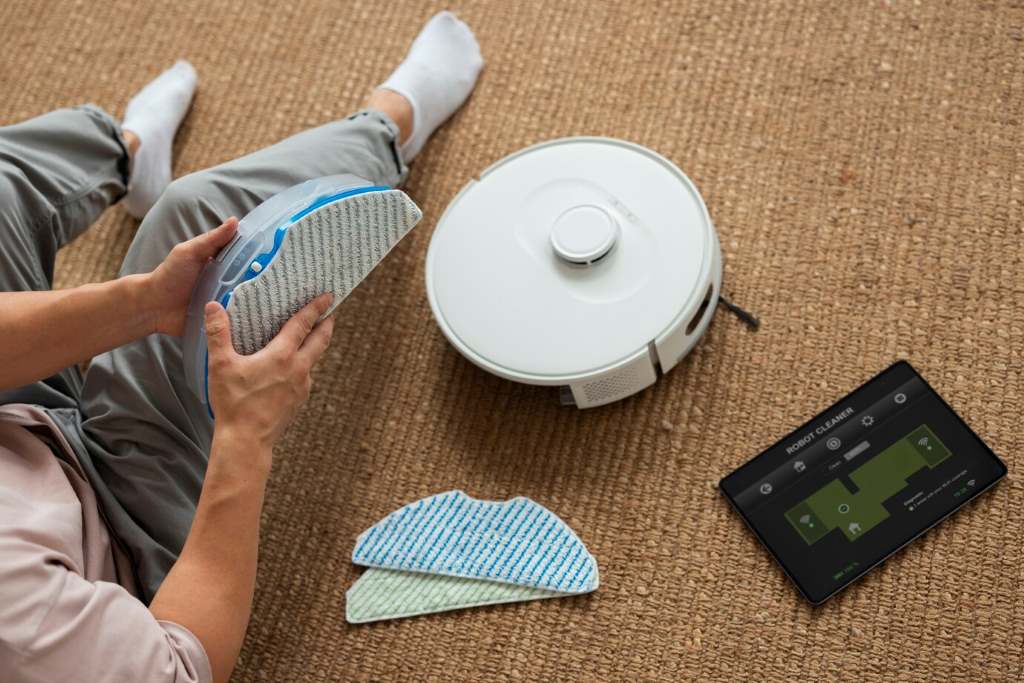
Prevention is better than a cure. Once your Roomba docks again, take steps to keep it running smoothly. First, maintain a clear docking area. I now store Dusty’s dock in an open space, free from clutter. Second, clean the sensors weekly to avoid dust buildup. Third, schedule regular maintenance checks. iRobot suggests cleaning the vacuum’s brushes and sensors every month. Additionally, keep the firmware updated to prevent software issues. Finally, monitor the battery’s health. A weak battery can cause docking problems over time. By following these habits, you’ll reduce the chances of future issues. My Dusty now docks reliably, saving me time and stress.
When to Contact iRobot Support
Sometimes, troubleshooting doesn’t work. If your Roomba still won’t dock, it may have a deeper issue, like a faulty sensor or motherboard. In my case, after cleaning and resetting Dusty, the problem persisted until I updated the firmware. However, if you’ve tried all steps, contact iRobot support. Visit their official website for live chat or phone support. According to a 2024 customer service survey by J.D. Power, iRobot’s support team resolves 85% of issues on the first contact. Be ready with your Roomba’s model number and a description of the problem. If your vacuum is under warranty, you may get a free repair or replacement.
Conclusion
Dusty’s docking drama taught me that Roomba issues are often simple to fix with the right approach. By checking the dock’s placement, cleaning sensors, and updating firmware, you can solve most problems. Regular maintenance and a clear docking area will keep your Roomba happy. Don’t let a wandering vacuum stress you out. Follow the steps in this post, and your Roomba will glide back to its dock like a champ. Have you faced that Roomba isn’t docking properly? Share your story in the comments or pass this article along to help others. Let’s keep our robotic helpers running smoothly!
FAQs
Why does my Roomba spin before docking?
Your Roomba spins to align with the dock’s infrared signal. If it keeps spinning, check for obstacles or dirty sensors.
How do I clean my Roomba’s sensors?
Wipe the front sensor and dock’s infrared window with a soft, dry cloth. Avoid water to prevent damage.
Can a low battery cause docking issues?
Yes, a weak battery may prevent the Roomba from reaching the dock. Charge it fully or replace the battery.
How often should I update my Roomba’s firmware?
Check for firmware updates every 2–3 months via the iRobot app to avoid navigation glitches.
What if my Roomba still won’t dock after troubleshooting?
Contact iRobot support at https://www.irobot.com for help. Provide your model number and issue details.


